
Filter Hygiene for Jira — Documentation
Filter Hygiene separates concrete cleanup need, supported change impact, and action readiness. Scan the saved filters Jira makes accessible, review direct Jira Software boards and incoming saved-filter references, then preflight owner, sharing, or one-filter deletion changes before Jira is modified.
Current status
This documentation supports an active ArdSaor Marketplace app. Start from the product page for current positioning and Marketplace links, then use this guide for operating details.
Quick Start / After Install
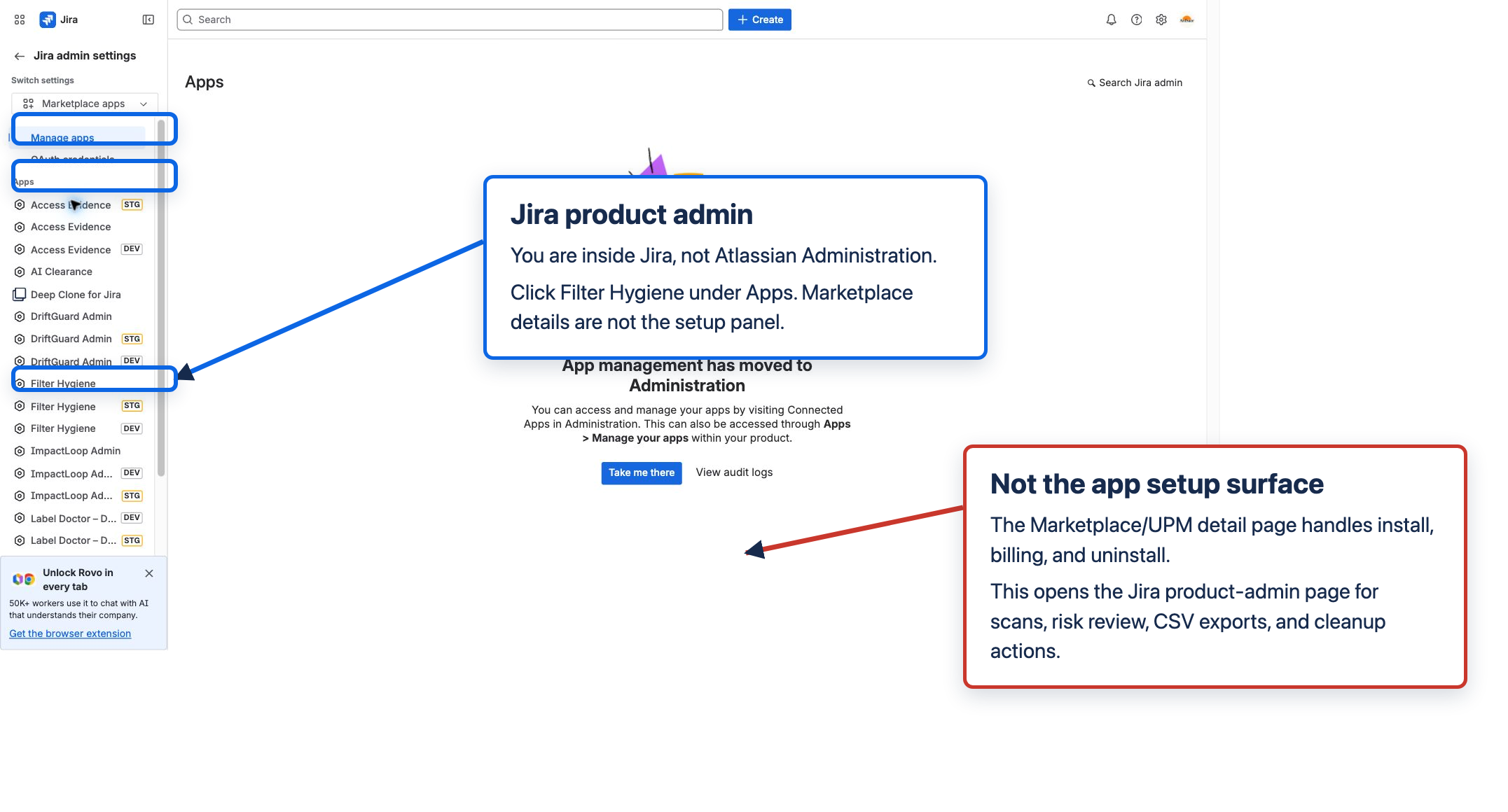
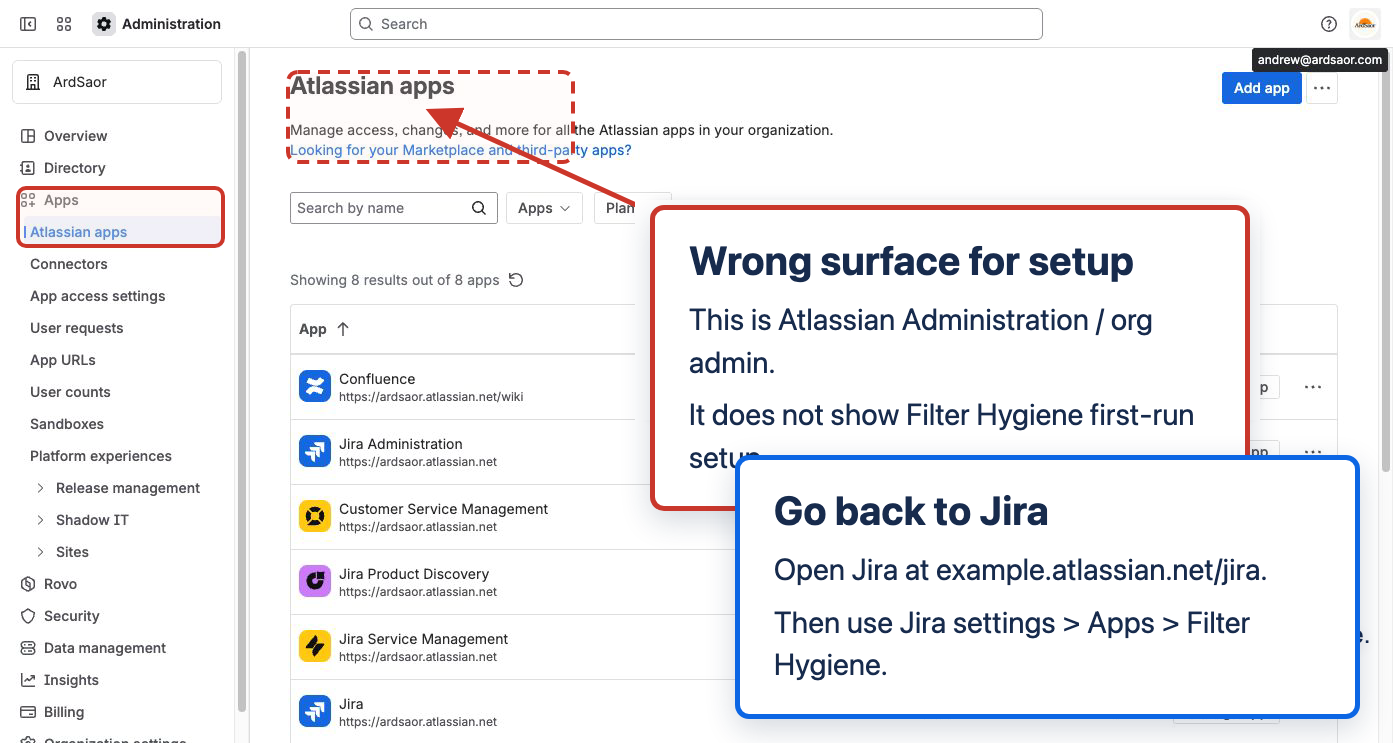
Start in the Jira product, not Atlassian Administration. Open https://<site>.atlassian.net/jira. Filter Hygiene is configured inside Jira product administration; Marketplace listing/details and org-level administration are not the scan or cleanup surface.
Surface map
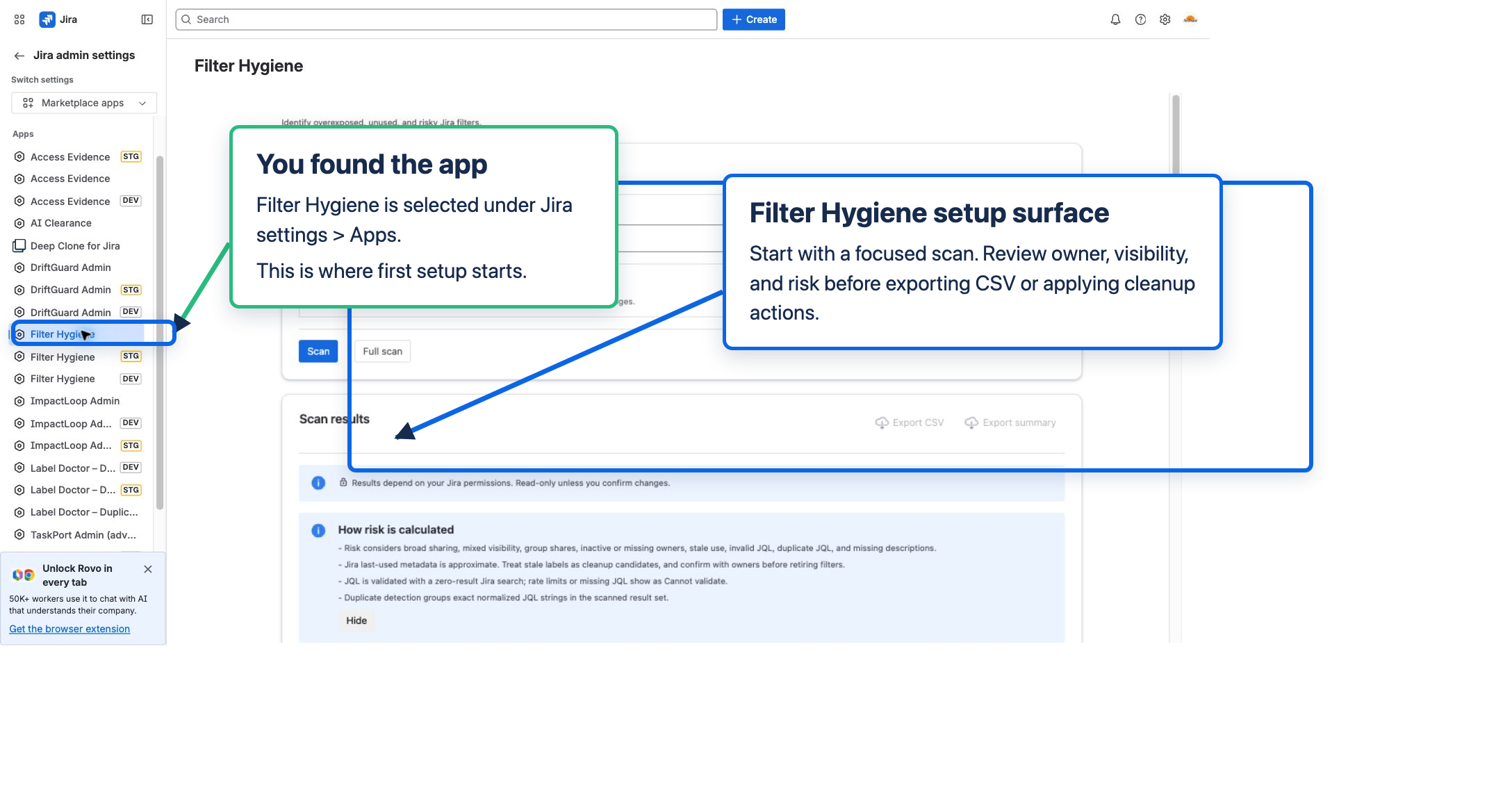
- Admin/setup surface: scan filters, review cleanup need and supported impact, export evidence, reassign owners, make filters private, remove global shares, delete one reviewed obsolete filter, and review Recent Activity. Reach it from Jira settings → Apps → Filter Hygiene.
- Jira filter surface: individual filter links open the native Jira saved filter page so admins can inspect the filter in context.
- Marketplace surface: install, billing, app details, and uninstall. It is not where scans or bulk actions run.
Five-minute path
- Open
https://<site>.atlassian.net/jira. - Open Jira settings → Apps → Filter Hygiene.
- Run a narrow scan first, such as visibility = Global or a known owner.
- Review Cleanup need, Change impact, Action readiness, visibility, owner, JQL status, and duplicate evidence before selecting anything for cleanup.
- Export CSV or a cleanup summary if you want a manager/audit snapshot before cleanup.
- Apply one small supported action first, such as removing global share from a disposable filter after the live preflight passes. Test deletion only on one disposable filter after reviewing impact and typing
DELETE. - Open Recent Activity to confirm the before/after record was written and whether undo is available.
If you are in Atlassian Administration
Atlassian Administration is the org-level surface under admin.atlassian.com. Use it for organization, users, billing, and connected apps. Filter Hygiene setup and cleanup lives in Jira product settings. Go to https://<site>.atlassian.net/jira, then open Jira settings → Apps → Filter Hygiene.
If Filter Hygiene is missing
- Confirm you are in the correct Jira Cloud site.
- Confirm Filter Hygiene is installed and licensed on that site.
- Confirm your user has Jira admin rights for the product site; org admin alone may not be enough.
- Refresh Jira after install. Forge app entries can take a short time to appear.
Use the Atlassian site link helper if you only have a site name and need Jira home or Manage apps links.
Setup screenshots
Interface screenshots

Contents
Supported Products
- Jira Software (Cloud)
- Jira Service Management (Cloud)
- Jira Work Management (Cloud)
- Works in both Company‑managed and Team‑managed projects
Permissions & Data
- Required scopes:
read:jira-work,read:jira-user,write:jira-work,read:filter:jira,read:user:jira,read:group:jira,read:project:jira,read:project-role:jira,read:field:jira,read:jql:jira,read:board-scope.admin:jira-software,validate:jql:jira,write:filter:jira,delete:filter:jira, andstorage:app - Data handled: filter metadata, owner/share data, parsed JQL reference evidence, direct board relationships, duplicate grouping, cleanup queue entries, deletion status, and before/after summaries for supported owner/share/deletion actions
- Hosting: Built on Atlassian Forge (no external servers)
- Storage: Forge storage for preferences, Recent Activity, bounded hygiene snapshots, and operational counters
Installation
- Install from the Atlassian Marketplace (Jira Cloud).
- The app adds a Jira admin page: Filter Hygiene.
- Open the page from Jira Settings → Apps → Filter Hygiene.
Quick Start
- Open Filter Hygiene from Jira settings → Apps → Filter Hygiene.
- Optionally enter search criteria:
- Filter name: search by name (contains match)
- Owner: filter by a specific owner
- Visibility: filter by share scope (Any, Private, Project, Group, Global)
- Click "Scan" to search one Jira result page matching your criteria, or "Full scan" to progressively retrieve the complete saved-filter corpus Jira makes accessible under the acting permissions.
- Review Cleanup need, Change impact, Action readiness, JQL status, duplicate groups, visibility, owner, and coverage before adding filters to the cleanup queue or running a supported action.
Understanding Results
- Cleanup need: Uses only concrete sharing, ownership, JQL validity, exact duplicate, description, staleness, and context evidence. NO PRIORITY SIGNAL means only that the scan found no configured cleanup-priority reason; it is not a safety claim.
- Change impact: Starts as Not checked. Use Review impact to check direct Jira Software boards and incoming references from the accessible saved-filter corpus. Known relationships are named; incomplete or failed supported lookups remain unknown.
- Action readiness: Starts as Preflight required. It reflects whether the action-specific live checks are ready, blocked, or uncertain—not whether a filter merely looks old.
- Visibility: Shows the current share scope (Private, Project, Group, Global, or Mixed)
- Owner: The user who owns the filter
- JQL and duplicate signals: Shows whether Jira can validate the JQL and whether normalized query text matches other filters in the scan
- Filter link: Click the filter name to open it in Jira
Supported impact and coverage limits
Filter Hygiene adds evidence Jira's ordinary JQL/results view does not assemble into one cleanup decision:
- Direct Jira Software boards: the app uses Jira's saved-filter-to-board lookup. A returned board is named and explains that changing the JQL changes board/backlog results and board-specific reports; deleting the filter can remove its source query.
- Incoming saved-filter references: the app parses the accessible saved-filter corpus through Jira and resolves exact filter IDs or unambiguous exact names. Known references are named and block deletion.
- Unknown due to failure or partial access: permission-denied, partial pagination, ambiguous names, parser omissions, and failed supported lookups stay distinct and block deletion.
- Unavailable or unchecked: dashboard gadgets, JSM queues, standalone/non-board reports, automations, exports, subscriptions Jira does not return, and external consumers are not inferred.
Zero supported relationships is not proof that a filter is unused or safe to delete. Full scan means every filter Jira returns to the app under the acting permissions; it does not include inaccessible private filters.
Bulk Actions
Select reviewed filters using the checkboxes, then choose an action from the Actions dropdown. Owner/share actions accept a bounded selection; permanent deletion requires exactly one filter:
- Reassign Owner: Transfer ownership of selected filters to another user. Useful for offboarding or consolidating filter ownership.
- Make Private: Remove all sharing permissions from selected filters, making them visible only to their owners. Filters that are already private are automatically skipped.
- Remove Global Share: Remove only the global/logged-in share permissions while preserving project and group shares. Filters without global share are automatically skipped.
- Delete Filters: Permanently delete exactly one reviewed filter after repeated live impact preflight and typed
DELETEconfirmation. Deleted filters cannot be restored by Filter Hygiene.
All actions show a live read-only preflight with current Jira owner/share data, planned changes, blocked filters, warnings, and restore eligibility before execution. Deletion repeats the supported board and saved-filter-reference checks immediately before the write. Known references, incomplete supported coverage, or stale reviewed evidence block deletion. Unsupported dashboard, queue, standalone-report, automation, export, subscription, and external use still requires manual review.
Single Filter Actions
Click the "..." menu on any filter row to access quick actions:
- Open filter: View the filter in Jira
- Copy filter link: Copy the filter URL to clipboard
- Reassign owner: Change the filter's owner
- Make private: Remove all sharing (only shown if filter is not already private)
- Remove global share: Remove global share (only shown if filter has global share)
- Review impact and dependencies: Check direct boards, incoming saved-filter references, and explicit coverage limits
- Delete filter: Permanently delete one reviewed filter after repeated impact preflight and typed confirmation
Export to CSV
Export your scan results for reporting or offline analysis:
- Run a scan with your desired criteria.
- Click "Export CSV" in the results header.
- A CSV file downloads with filter details including owner, visibility, share evidence, Cleanup need and reasons, JQL status, duplicate group, recommended action, known dependencies, source coverage, Action readiness, and corpus coverage. Dependency fields remain Not checked until Review impact runs.
Use the delete candidate report when planning irreversible cleanup. It includes safety notes, top candidates, and an embedded CSV for offline review.
Cleanup summary and Recent Activity
Filter Hygiene maintains a Recent Activity record for exports, owner changes, privacy changes, global-share removals, and undo attempts:
- Click "Recent Activity" to expand the audit log section.
- Each entry shows the action type, number of filters affected, actor, before/after owner or share summaries, per-filter status, success/failure counts, failure reasons, and timestamp.
- Use Recent Activity export CSV or Markdown for cleanup evidence.
- Use "Export summary" after a scan to generate a Markdown cleanup summary with criteria, concrete cleanup counts, corpus coverage, and review notes.
Best Practices
- Start with a focused scan for global/logged-in sharing, inactive ownership, invalid JQL, or exact duplicates—then review impact before ranking the next action.
- Review filter ownership regularly, especially after team changes or offboarding.
- Use CSV, cleanup summary, and Recent Activity exports to create periodic audit reports for compliance or management review.
- Test owner/share actions on a small selection and review preflight blockers plus exact-undo eligibility before applying them.
- Delete only one reviewed filter at a time. Review known boards and saved-filter references, keep unsupported relationships visible, type
DELETE, and verify Jira no longer returns the filter.
Troubleshooting
I can't see certain filters
- Filter Hygiene respects Jira permissions. You can only see and modify filters you have access to.
- Enable the private-filter scan option when you expect admin-visible private filters.
- Private filter coverage still depends on what Jira returns for your administrator permissions and site configuration.
Actions fail with permission errors
- Jira only lets eligible users modify filter ownership, sharing settings, or deletion state. In many cases the filter owner must run a permission change, or ownership must be reassigned first.
- Review the preflight warnings and blocked-filter reasons before retrying.
Some filters show as "already in desired state"
- This is expected. Filter Hygiene skips filters that don't need changes (e.g., already-private filters when using "Make Private").
Security & Privacy
- Runs entirely on Atlassian Forge.
- No customer data is sent to external services.
- Forge storage is used for preferences, Recent Activity, cleanup queue state, bounded hygiene snapshots, and operational counters.
- All actions use the logged-in user's permissions, ensuring proper access control.
- Deletion uses
delete:filter:jiraonly for the explicit Delete Filters action. - Eligible owner/share undo uses an exact compare-and-set guard: if Jira no longer matches the recorded post-action state, restoration stops rather than overwriting a newer change.
FAQ
Does it work with Jira Service Management?
Yes. Filter Hygiene supports Jira Software, Service Management, and Work Management (Cloud).
Will it delete filters?
Yes. Admins can delete exactly one reviewed filter after a repeated live impact preflight and typed DELETE confirmation. Deleted filters cannot be restored by Filter Hygiene.
Can I undo changes?
Eligible recent owner/share changes can be undone from Recent Activity while the undo window is open and Jira still exactly matches the recorded post-action state. Any intervening owner/share change blocks restoration. Jira can also reject restoration. Deletion has no Filter Hygiene undo.
What dependency coverage does Filter Hygiene support?
It checks direct Jira Software boards and incoming references from the accessible saved-filter corpus. Dashboard gadgets, JSM queues, standalone reports, automations, exports, subscriptions Jira does not return, and external consumers remain unavailable or unchecked.
Does zero supported impact mean safe to delete?
No. Zero returned direct boards or saved-filter references is not proof that a filter is unused or safe to delete. Review unsupported and inaccessible relationships manually.
Support
Need help or have a feature request? Contact us via the Marketplace listing support link. Include your site URL and a short description of the issue.
What to send support
- Jira site URL, for example
https://example.atlassian.net/jira. - Current browser URL where you got stuck.
- Screenshot of the page you are on.
- Whether you are in Jira, Jira admin settings, Atlassian Administration, Marketplace, or a native Jira filter page.
- The scan criteria used: filter name, owner, visibility, private-filter inclusion, or full scan.
- The action you attempted: scan, export CSV, reassign owner, make private, remove global share, or other.
- Your role on the site: Jira admin, project admin, org admin, evaluator, or other.
Related documentation
Product pages provide current positioning and Marketplace links; documentation pages provide operating details.