
DriftGuard for Jira — Documentation
DriftGuard is an Atlassian Forge app that monitors Jira configuration drift for boards and filters. It snapshots configuration on a schedule, compares changes, and presents a clear timeline with human readable diffs. Optional Jira issue notifications keep teams informed.
Current status
This documentation supports an active ArdSaor Marketplace app. Start from the product page for current positioning and Marketplace links, then use this guide for operating details.
Quick Start / After Install
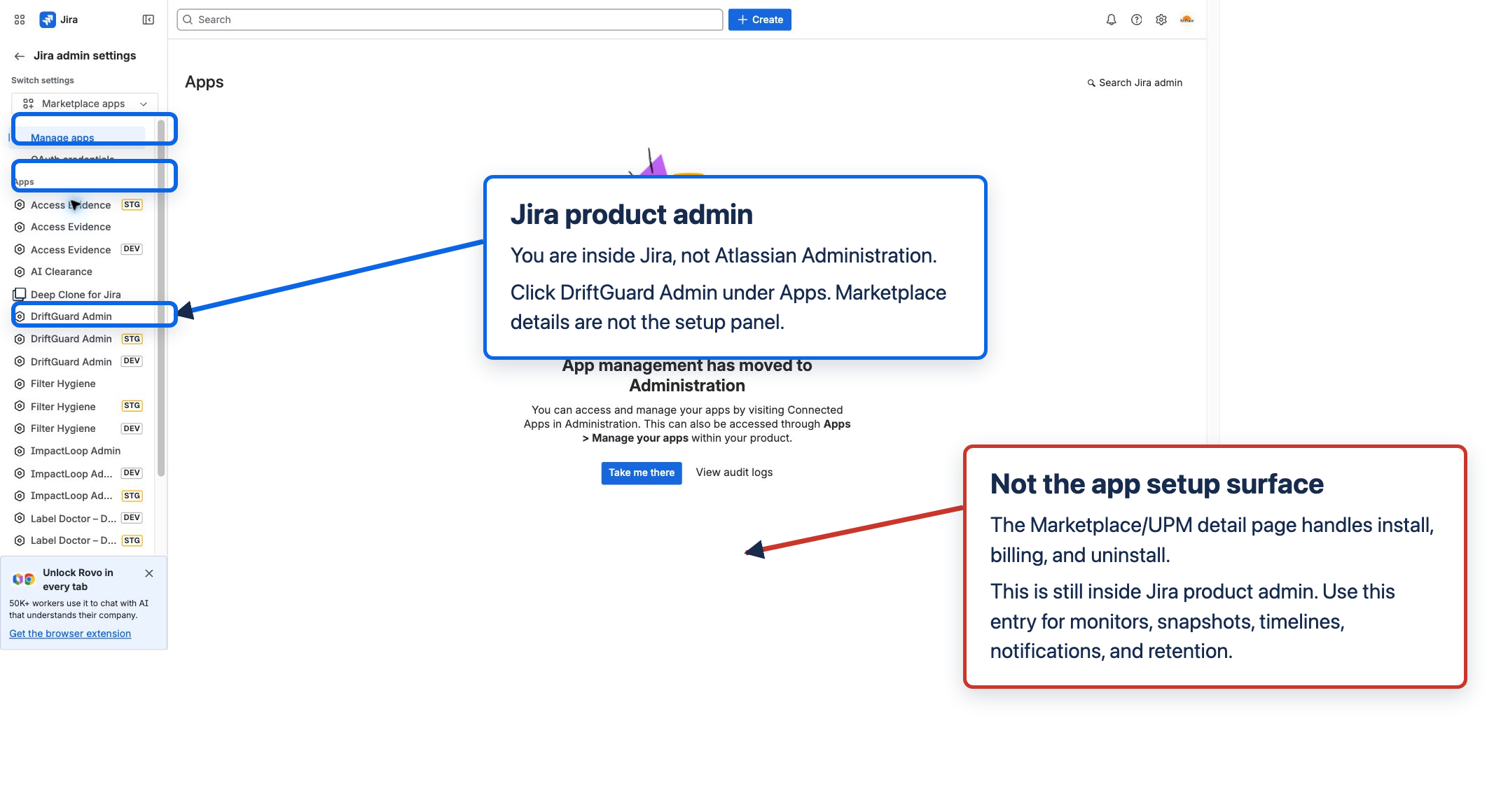
Start in the Jira product, not Atlassian Administration. Open https://<site>.atlassian.net/jira. DriftGuard is configured inside Jira product administration; Marketplace listing/details and org-level administration are not the monitor setup surface.
Surface map
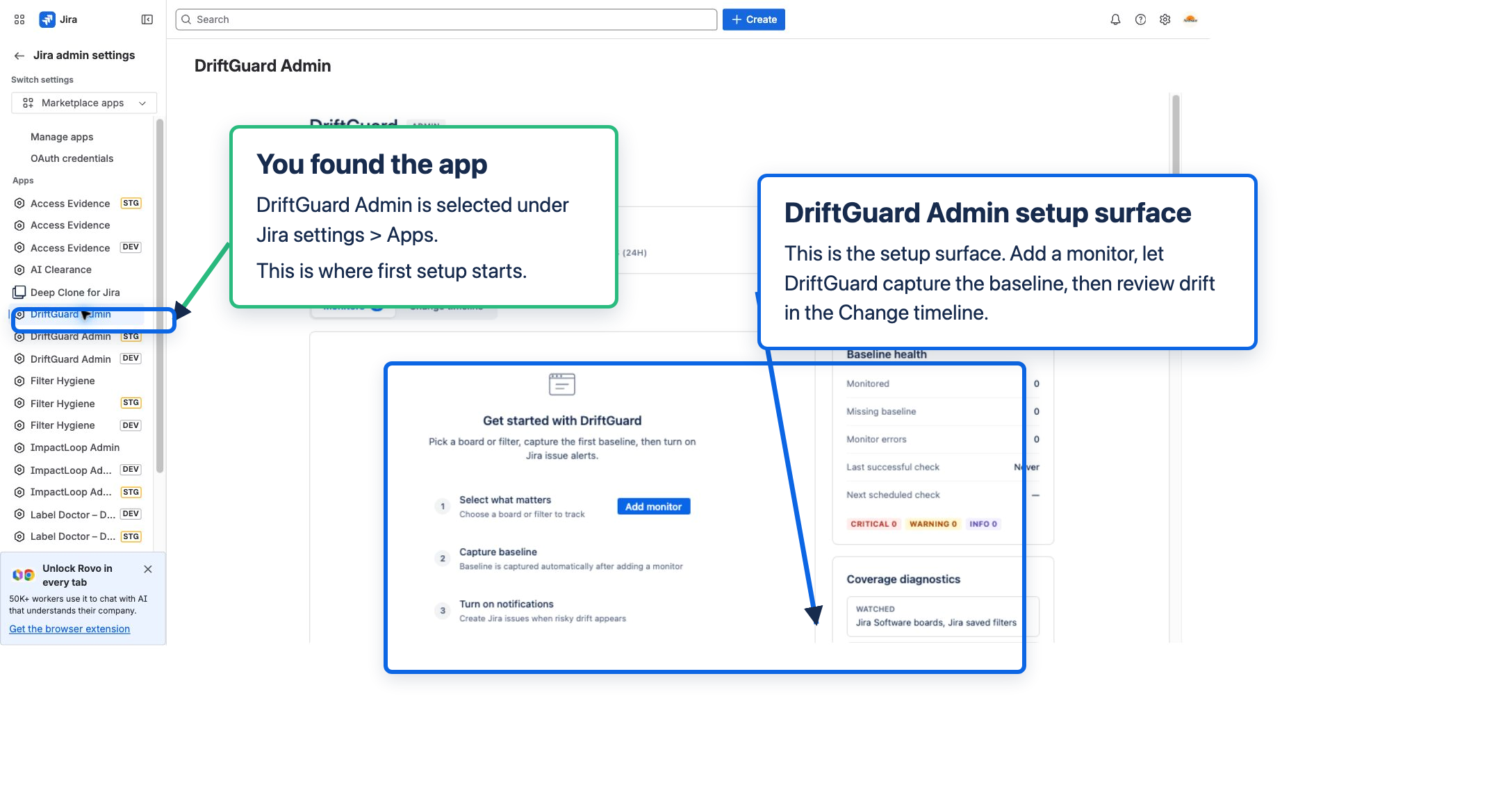
- Admin/setup surface: monitors, snapshots, change timeline, notification settings, cadence, and retention. Reach it from Jira settings → Apps → DriftGuard Admin.
- Operational output: optional Jira notification issues created in the project and issue type you configure.
- Marketplace surface: install, billing, app details, and uninstall. It is not where you add board or filter monitors.
Five-minute path
- Open
https://<site>.atlassian.net/jira. - Open Jira settings → Apps → DriftGuard Admin. If you are already on a Marketplace details page, switch back to Jira settings.
- Add one low-risk board or saved filter monitor.
- Confirm DriftGuard captures the baseline snapshot automatically.
- Use Capture snapshot after a safe test change, or wait for the scheduled cadence.
- Open the change timeline and review the diff detail.
- Optional: configure Jira issue notifications only after the monitor and timeline are working.
If you are in Atlassian Administration
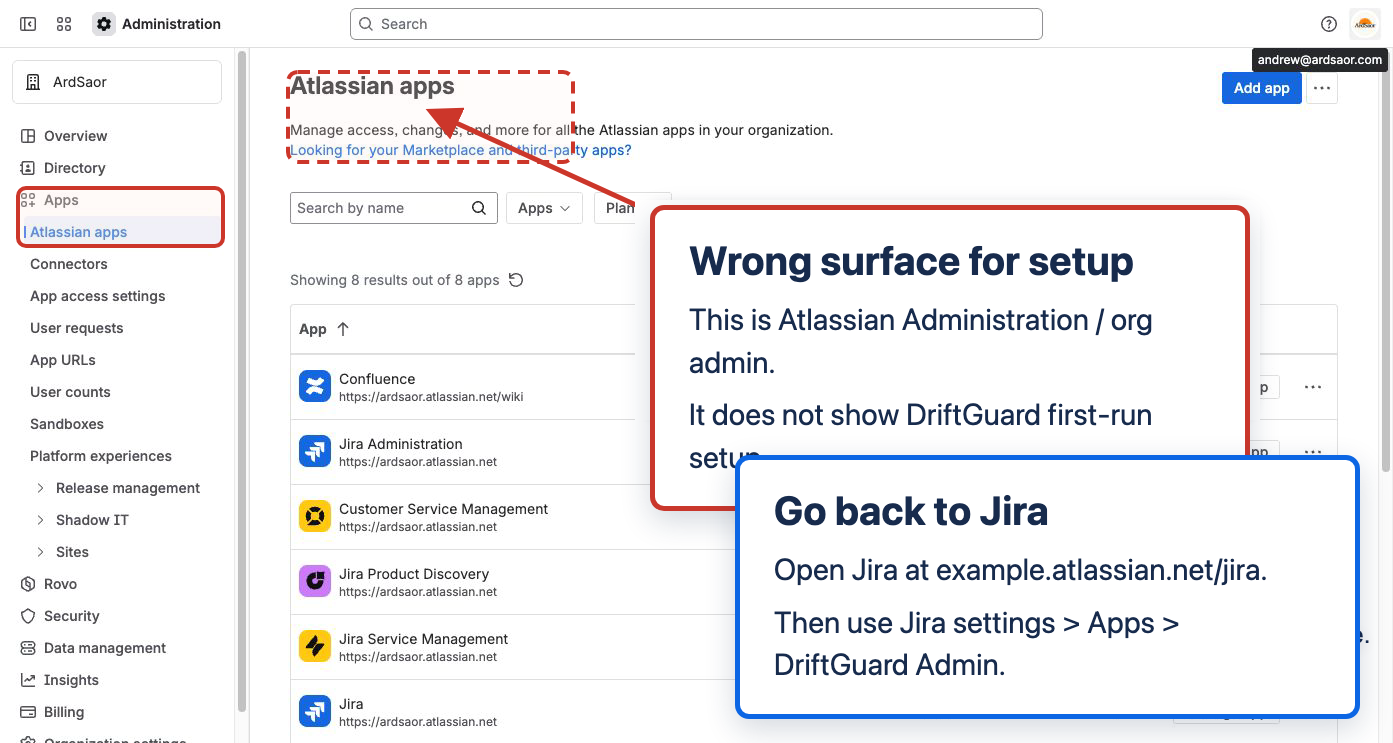
Atlassian Administration is the org-level surface under admin.atlassian.com. Use it for organization, users, billing, and connected apps. DriftGuard setup lives in Jira product settings. Go to https://<site>.atlassian.net/jira, then open Jira settings → Apps → DriftGuard Admin.
If DriftGuard is missing
- Confirm you are in the correct Jira Cloud site.
- Confirm DriftGuard is installed and licensed on that site.
- Confirm your user has Jira admin rights for the product site; org admin alone may not be enough.
- Refresh Jira after install. Forge app entries can take a short time to appear.
Use the Atlassian site link helper if you only have a site name and need Jira home or Manage apps links.
Setup screenshots
Interface screenshots

Contents
- Quick Start / After Install
- Setup screenshots
- Interface screenshots
- Supported products and requirements
- What DriftGuard monitors
- How DriftGuard works
- Installation
- Quick start
- Managing monitors
- Snapshots, cadence, and retention
- Change timeline and diff detail
- Notifications (optional)
- Settings
- Permissions and data access
- Data stored and retention
- Security and privacy
- Known limitations
- Troubleshooting
- FAQ
- Support
Supported products and requirements
- Jira Cloud.
- Board monitoring requires Jira Software on the site.
- Filter monitoring works on Jira Cloud sites that support saved filters.
- Admin access is required to install and configure the app.
What DriftGuard monitors
- Boards: column and status mappings, WIP limits, ranking field, estimation settings, and other board configuration.
- Filters: JQL, name and description, owner metadata, and share or edit permissions.
DriftGuard does not read issue content. It only stores configuration metadata needed to compare snapshots and explain what changed.
How DriftGuard works
- When you add a monitor, DriftGuard captures a baseline snapshot.
- On a schedule, DriftGuard fetches configuration for each monitored target.
- Configuration is normalized and hashed for stable, reliable diffing.
- If the hash changes, DriftGuard stores a new snapshot and generates a change event.
- The admin timeline shows detected changes with summaries and severity.
DriftGuard is read first. It does not edit board or filter configuration. The only write action is optional Jira issue creation for notifications.
Installation
- Install DriftGuard from the Atlassian Marketplace (Jira Cloud).
- The app adds a Jira admin page named DriftGuard Admin.
- Open the admin page to configure monitors and settings.
Quick start
- Open DriftGuard Admin from Jira settings or Apps.
- Add a board or filter monitor.
- Confirm the baseline snapshot (automatic on add).
- Make a safe test change in Jira (board config or filter JQL).
- Wait for the next scheduled snapshot or use Capture snapshot.
- Review the change in the timeline and open the diff detail.
Managing monitors
- Add monitor: Select a board or filter to start tracking.
- Enable or disable: Disabled monitors are skipped by scheduled snapshots.
- Capture snapshot: Force a snapshot now, useful after intentional changes.
- Remove: Removing a monitor deletes its stored snapshots and events.
- Limits: Up to 100 monitors per installation.
Snapshots, cadence, and retention
- Cadence: Hourly by default. You can switch to daily in settings.
- Detection time: DriftGuard reports the time a snapshot detected a change.
- Retention: Default retention is 30 days, with a cap of 100 snapshots per target.
- Batching: Targets are processed in batches to keep runs reliable at scale.
If you choose daily cadence, the app still runs hourly but throttles snapshots so only one daily run is performed.
Change timeline and diff detail
- Timeline: Chronological list of detected changes with target name, summary, and severity.
- Diff detail: Human readable changes, full normalized configuration, and raw JSON diff view.
- Severity: Info, warning, and critical help prioritize changes that may affect workflows.
The diff view is designed to answer: what changed, when, and how it affects behavior. DriftGuard does not claim who changed it unless Jira provides reliable attribution.
Notifications (optional)
DriftGuard can create Jira issues when changes are detected. This is opt in and relies on your Jira notification schemes.
- Choose a project and issue type for notification issues.
- Set a minimum severity (all, warning, or critical).
- Optionally include diff details in the issue description (up to 10 items).
- Select recipients to @mention in notification comments.
Notifications are best effort. If Jira issue creation fails, DriftGuard logs the error and continues snapshot processing.
Settings
- Snapshot cadence: Hourly or daily.
- Retention days: Controls how long snapshots and events are kept.
- Notifications: Project, issue type, severity threshold, recipients, and diff inclusion.
Permissions and data access
DriftGuard uses Atlassian Forge and requests only the scopes needed to monitor configuration and deliver optional notifications.
read:jira-work- read board and filter configuration metadata.read:jira-user- user search for notification recipients.read:board-scope:jira-software- board list and configuration access.read:board-scope.admin:jira-software- admin level board configuration access.read:filter:jira- filter search and filter details.read:issue-details:jira- issue metadata access for notification configuration and validation.write:jira-work- create Jira issues for notifications (optional).read:project:jira- list projects for notification settings.read:workflow:jira- reserved for workflow drift monitoring (not enabled by default).manage:jira-project- reserved for workflow and scheme checks (not enabled by default).manage:jira-configuration- reserved for workflow scheme drift detection (experimental).storage:app- store snapshots, settings, and change events.
Data stored and retention
- Monitor targets: IDs, display names, enabled state, and status.
- Snapshots: normalized board or filter configuration only.
- Change events: summaries, severity, timestamps, and diff paths.
- Settings: cadence, retention, and notification configuration.
- Cursor state: batch processing progress.
DriftGuard does not store issue content. Recipient identities are stored as account IDs, not email addresses.
Removing a monitor deletes its snapshots and events. Uninstalling the app removes DriftGuard storage from your site.
Security and privacy
- Runs entirely on Atlassian Forge.
- No external servers or third party data processors.
- Data is stored in Forge storage within Atlassian infrastructure.
- Only configuration metadata is stored, not issue content.
Known limitations
- Detection time is based on snapshot cadence, not the exact change time.
- Some private boards or filters may not be accessible to the app.
- Scheduled snapshots run in app context, not user context.
- Workflow monitoring is not enabled in the UI by default.
Troubleshooting
I cannot add a board monitor
- The app may not have access to the board configuration.
- Try a different board or ensure the board filter is shared appropriately.
I cannot add a filter monitor
- Personal or private filters are not accessible to scheduled snapshots.
- Share the filter with a project or group so the app can access it.
No changes are showing
- Wait for the next snapshot run or use Capture snapshot.
- Check that the monitor is enabled and cadence is not set to daily.
Notifications are not firing
- Confirm notifications are enabled and a project and issue type are selected.
- Check the severity threshold matches the change severity.
- Verify your Jira notification scheme for the project.
FAQ
Does DriftGuard change Jira configuration?
No. DriftGuard is read first. It never edits boards or filters. The only write action is optional Jira issue creation for notifications.
Does DriftGuard tell me who made the change?
No. Jira does not provide reliable attribution for all configuration changes, so DriftGuard does not guess.
Can I export changes?
Export is not available in the current release.
Does it support workflow monitoring?
Workflow monitoring is not enabled in the UI by default. Contact support if you want to discuss early access.
Support
Need help or have a feature request? Contact us via the Marketplace listing support link or ArdSaor Support. Include your Jira site URL and a short description of the action you were taking.
What to send support
- Jira site URL, for example
https://example.atlassian.net/jira. - Current browser URL where you got stuck.
- Screenshot of the page you are on.
- Whether you are in Jira, Jira admin settings, Atlassian Administration, Marketplace, or a native Jira board/filter page.
- Monitor type and name: board or filter.
- The action you attempted: add monitor, capture snapshot, view diff, configure notification, or other.
- Your role on the site: Jira admin, project admin, org admin, evaluator, or other.
Related documentation
Product pages provide current positioning and Marketplace links; documentation pages provide operating details.